Start with a browser tool, not a paid download. For hobbyists animating in small doses — a lunch break, a train ride, twenty minutes after dinner — the honest answer is that a free, no-install animation maker in the browser covers almost everything you actually need: frame-by-frame drawing, onion skinning, a timeline, and an export you can post. The paid apps earn their price later, once you know you'll keep going.
The catch is sorting the genuinely useful tools from the ones that exist to upsell you a watermark. This guide walks through three that hold up — Brush Ninja, DrawnColor, and Adobe Express — then busts a few myths about what you're supposed to own before you draw your first frame.
What does a hobbyist actually need from an animation maker?
Four things. A way to draw frames, a way to see the frame before and after while you draw, a way to preview the timing, and a way to export something shareable. That's it. Everything else — layers, pressure sensitivity, audio sync — is a bonus, not a barrier.
Onion skinning is the one worth insisting on. It shows faint ghosts of the neighbouring frames while you draw, exactly like a traditional animator working on a lightbox with translucent paper. Per DrawnColor's own guide, it's the single most useful tool in hand-drawn animation — without it you're guessing how far a character moved, and the result jitters. Any tool worth your time has it or a close cousin.
Export matters more than beginners expect. A GIF posts anywhere; an MP4 plays nicely on video platforms. If a free tool stamps a watermark on your export or caps your frames behind a paywall, that's the dealbreaker, not the drawing tools.
Which browser tools are actually good?
Brush Ninja is the friendliest starting point. It runs frame-by-frame in the browser on desktop and mobile, with no downloads, and per its own documentation it exports as a GIF and is free to use, with a paid version adding extra features. The keyboard shortcuts are a quiet strength — one key toggles onion skinning, another duplicates the current frame, and space plays the animation. There's even a dedicated lesson aimed at kids and classrooms, which tells you how low the barrier is. If you want to animate LEGO or clay with a camera instead, the same site offers a separate stop-motion maker.
DrawnColor is the most complete free studio of the three. It's a proper frame-by-frame editor with three layers per frame, adjustable frame rate, and stylus support with pressure-sensitive line weight — an Apple Pencil or S Pen draws naturally, and finger or mouse drawing works too. Two details stand out. First, privacy: per the site, everything runs on your own device, with no signup, no upload, and no watermark. Second, the one-tap motion buttons — Fly across, Bounce, Spin, Grow, Float — turn a single drawing into a run of moving frames, and the result is ordinary frames you can keep drawing over. There's also a kids mode and thirteen guided exercises that fill the timeline with reference frames to trace, like an animator's lightbox.
Adobe Express solves a different problem: animating a character without drawing at all. Its Animate Characters tool, per Adobe's page, lets you pick a character, record your voice, and watch the character move to the audio in seconds — on desktop or phone, free. It supports text animations, fades, slides and bounces, and takes WAV or MP3 audio (plus MP4 as audio-only, and AIF in Safari). It's less a drawing studio than a quick-results machine, and it pairs well with the other two: rough the idea in a frame-by-frame tool, polish the presentation in Express.
Do I need to draw well to start?
No — and this is the myth worth killing first. Frame-by-frame animation rewards small, deliberate changes between frames, not beautiful single drawings. A stick figure throwing a ball that then bonks them on the head is a complete, funny animation; Brush Ninja's own example gallery is full of exactly that kind of thing, plus manta rays, beating hearts, and a slice of pie disappearing one bite at a time.
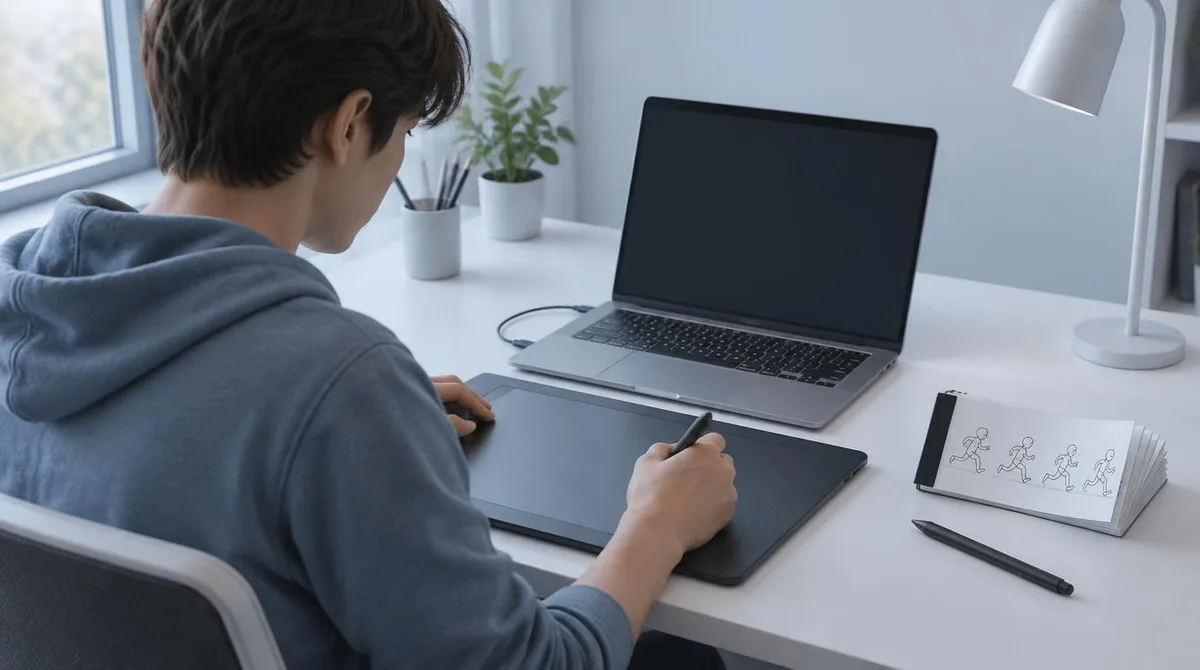
The classic first exercise is the bouncing ball: the ball squashes as it hits the ground and stretches as it flies up. DrawnColor's guide suggests about eight frames for it and calls it the fastest teacher of timing and spacing there is. A waving hand on a four- or five-frame loop is the other starter — ideal as a sticker or reaction GIF. Neither demands drawing skill. Both demand patience with repetition, which is a different thing entirely.
What about frame rate — does 12 fps vs 24 fps matter?
It matters, and it's simpler than it sounds. Frame rate is how many drawings play each second. Per DrawnColor's documentation, 12 fps is the traditional "animating on twos" look used in most TV cartoons — a good default that gets smooth movement for half the drawings. Use 24 fps for very fluid action, or drop to 6–8 fps for a snappy, hand-made, stop-motion feel.
One more timing trick: instead of drawing the same pose over and over, set a hold. A frame held for two or four beats is what gives a joke its pause. Hobbyists who discover holds stop redrawing the same picture and start directing.
Are paid apps like FlipaClip or Procreate Dreams worth it?
Eventually, maybe — but not as your first step. DrawnColor's own comparison is fair about this: those are excellent paid apps you install on a phone or iPad, while a browser tool costs nothing, adds no watermark, and asks for no account. The honest sequencing is: learn the flipbook method free, in the browser, on whatever device you have. If you're still animating three months later, that's the moment a paid app with more horsepower earns its money.
There's also a practical middle path. If your goal is a talking character rather than a hand-drawn short, Adobe Express's free plan — with its quick-action tools and templates — may be all you ever need. Not every hobbyist wants to become a keyframe animator. Some just want their avatar to say a thing.
Where does a first animation fit in the wider hobby?
Small-dose animation is a gateway, not a side quest. The flipbook method you'd use in these tools is the same one behind every hand-drawn cartoon — draw a picture, add a frame, draw the next one slightly differently, press play. Once you feel how timing and spacing work, whole areas of fandom open up: you'll watch the craft differently, and the animation coverage here — from who does what in the pipeline to how a TV season actually gets made — will read differently too. We covered a connected angle in How an Animated TV Season Actually Gets Made.
When you're ready to think bigger than a GIF, our guide on choosing animation software for your first short picks up where the browser tools leave off. And if you'd rather watch than draw tonight, the short animated films under 30 minutes list is a good place to steal techniques from. For related coverage, see 8 Short Animated Films You Can Watch in Under 30 Minutes.
What this means: pick one tool tonight
The evidence points one way: the barrier to animation is lower than it has ever been, and the tools that respect your time are free. Our analysis of the three is simple. Brush Ninja if you want the gentlest possible on-ramp, especially with kids. DrawnColor if you want the fullest free frame-by-frame studio, with layers, stylus support and guided exercises. Adobe Express if you want a character to talk without drawing a thing.
Start with the bouncing ball. Eight frames. Keep the onion skin on. If the hobby takes, you'll know within a week — and you won't have spent anything finding out.